Posting every day is the part of running a YouTube channel that wears people down. Not because any one video is hard, but because there's always another one due.
Most YouTube automation tools only schedule videos you already made. Synthvids' Autopilot automates the whole thing: tell it which days and times a channel posts, and for each one it finds a story, writes the script, makes the video, checks it and schedules it to post on YouTube or TikTok. You don't have to open Synthvids for any of it. It works for long videos and YouTube Shorts, and it's open on every plan.
How YouTube automation works: from story to scheduled post
You set a schedule for a channel. Each entry on the schedule is a slot: a time, a format (Short or Long) and where it posts (YouTube, TikTok or both).
About a day before each slot, Autopilot:
- Finds a story. It takes the best-scoring story your channel has found since you switched Autopilot on. If there isn't a good enough one, it runs a story search for the channel, the same search as on the Stories page.
- Writes the script in your channel's voice and format.
- Renders the video with your channel's look, voice, music and captions. On the default look, Made for each story, every video gets a look designed for its own story.
- Checks every scene. Before anything is posted, each AI scene is checked for problems like a broken face or garbled text. If a scene looks broken, the video is held back instead of posted, and it waits on your Finished page for you to fix and post. If the channel has Auto-retake scenes that look broken switched on, the scene is remade and checked again first.
- Schedules the post for the slot's time, so it shows on your publishing calendar like any post you scheduled yourself.
Because it starts the day before, the video is usually finished well ahead of its slot.
How to set up an automated YouTube channel
- Open your channel's Channel setup → Autopilot.
- Choose your Time zone. Slot times are read in this zone.
- Pick the Days the channel posts.
- Add Slots: a time, Short or Long, and the platforms. Add as many slots as you want per day.
- Switch on Run Autopilot.
Everything Autopilot uses comes from the channel's own setup: the story finder's settings, the script style, the voice, the look. Get those right first, and Autopilot makes the videos you'd make yourself.
Auto-post YouTube Shorts from your long videos
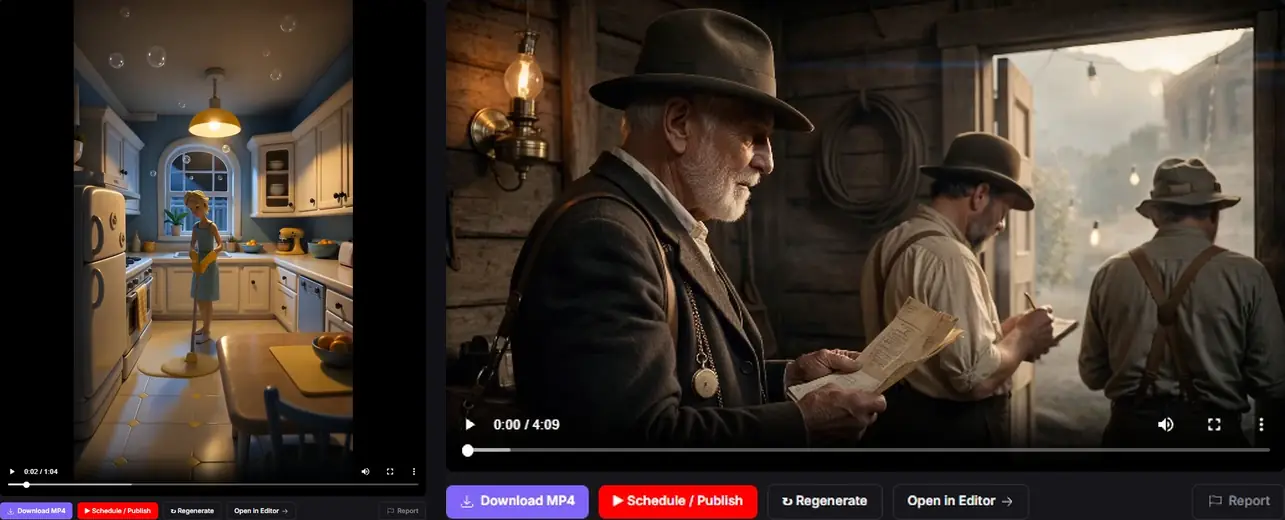
If a day has both a Long slot and a Short slot, Autopilot can fill the Short with the Auto clip short from that day's long video, a vertical short with its own script and voiceover over the long video's scenes. Tick Fill the Short slot from that day's Long's Auto clip short. That way one render covers both slots.
Automate a news channel with fresh stories
For news channels, where yesterday's story is already old, switch on News mode: search for fresh stories each morning on the Autopilot tab. A few hours before each day's first video, Autopilot runs a story search and uses only what that search finds. If nothing good turns up, that video is skipped rather than made from an old story. Tip: set the story finder's Days to look back to 1 or 2.
News mode is off until you switch it on.
How much does YouTube automation cost?
Each video Autopilot makes uses your credits like a normal render. There's no extra charge for Autopilot itself. If your balance runs short, that slot is skipped rather than half-made, and the next slot tries again. A video held back by the scene check has already been made, so it has used its credits; it stays on your Finished page, ready to fix and post.
Does it post to TikTok too?
TikTok posts from Autopilot go to your TikTok inbox, so you finish each one in the TikTok app. TikTok asks you to choose each post's visibility yourself, so Autopilot doesn't post to TikTok profiles on its own. YouTube posts are scheduled on YouTube for the slot's time.
FAQ
Is this a faceless YouTube automation tool?
Yes. Autopilot is built for faceless channels: it finds the story, writes the script, narrates it with your channel's voice and makes original AI scenes, so no one has to appear on camera.
Can I schedule YouTube Shorts automatically?
Yes. Add a Short slot to your schedule and Autopilot makes and schedules a Short for that time, or fills it with the Auto clip short from that day's long video.
Will Autopilot reuse stories I already made videos from?
No. It only uses stories found after you switched it on that haven't been used yet, and it skips a story that's the same as one you already made a video from.
Will Autopilot post a video with a broken scene?
No. Every scene is checked before the post is scheduled. A video with a scene that looks broken is held back, not posted, and waits on your Finished page.
Can I still make videos by hand on an Autopilot channel?
Yes. Everything works as usual. Autopilot only fills its own slots.
What happens if a step fails?
That slot is skipped, and the next one starts fresh. A video is never posted after its slot time has passed.
How do I stop it?
Switch off Run Autopilot in the channel's Autopilot tab. Posts already scheduled stay on your calendar, where you can reschedule or cancel them.
What's next
Next on the blog: how to keep the same character, with the same face, in every scene of an AI video. In the meantime, see the plans.