
Most AI video generators make you render first and fix things after. You find out scene 4 shows the wrong thing only once the video is finished, and every fix costs another render.
Synthvids now has an AI storyboard and pre-render editor. Before anything renders, it lays out your whole video as a storyboard: every scene as a card with its narration and what will be on screen. You plan the video, edit any scene, add your own footage, and render once. It's open to every account, behind the Storyboard button on each story card.
What is a pre-render editor?
A pre-render editor (some tools call it a pre-render planner or a before-render editor) lets you plan and edit a video before it's generated, instead of after. In Synthvids it's a storyboard built from your script: one card per scene, in order, with transitions, music and look for the whole video on one screen.

Why storyboard an AI video before it renders:
- You fix the plan, not the result. Changing a line or a picture during pre-render planning costs nothing. Changing it after means re-rolling a scene.
- Your footage lands where it belongs. Put your own clip on the exact line it goes with instead of hoping it gets placed well.
- You see the whole video at once. Scene order, transitions, music and look, all before a single clip is made.
How to storyboard a video in Synthvids
On the Stories page or your channel page, every story card has a Storyboard button. Click it and Synthvids turns the story's script into a scene-by-scene storyboard. If the story has no script yet, write one first and the storyboard appears.
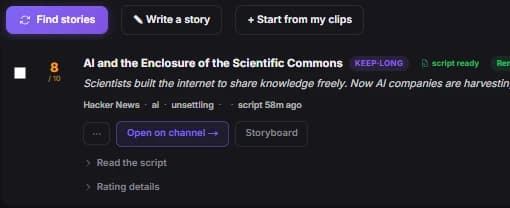
It's optional. Instant Render still goes from story to finished video in one click. The storyboard is for the videos you want to plan by hand.
Edit each scene before it renders
Click any scene on the storyboard to open it. You'll see its narration and what's on screen, and you can:
- Edit the narration. Change the line and tap Save line. If a line may not picture well, the scene says so and offers a line that pictures better, which you can take with Use this line instead.
- Get a suggested visual. It suggests what the scene should show, and you can push it More literal or More dramatic.
- Add your own photos and clips. Upload footage for the story, describe what's in each file, and drag it onto a scene (or tap it, then tap the scene). When a clip fits a scene, it tells you: Your footage fits here.
- Choose how your clip shows. Full screen, or in a box in a corner over an AI scene, with its own sound on or off.
- Record the line yourself. Record this line lets you narrate that one scene in your own voice.
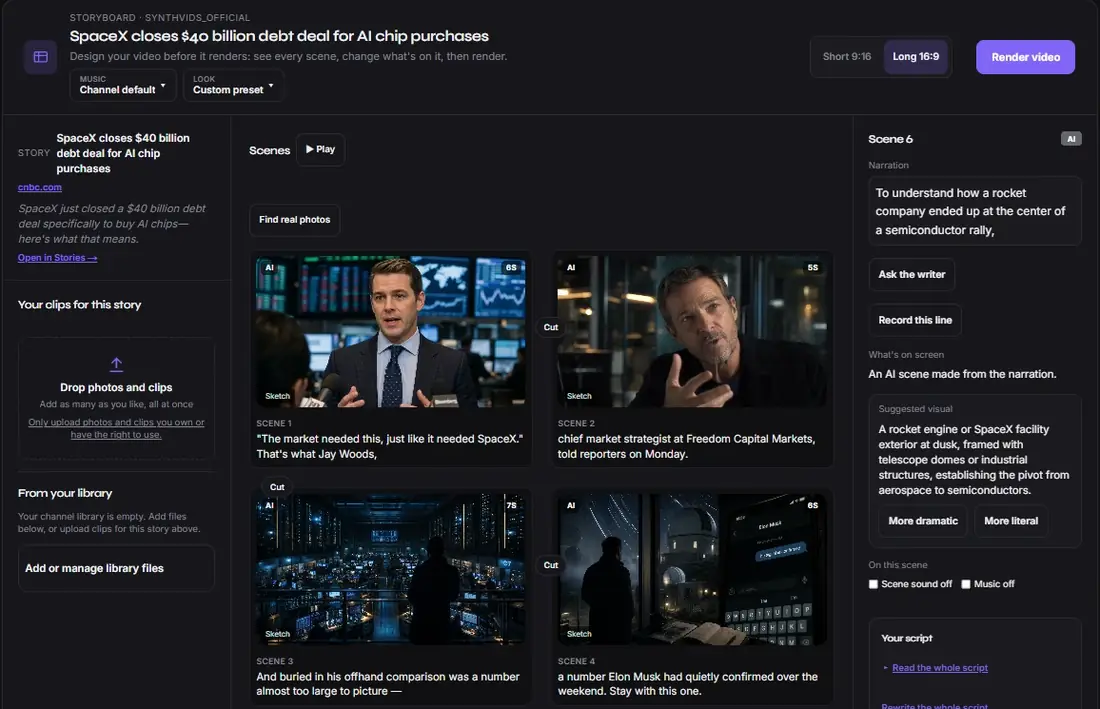
The story panel shows the look and the music for the whole video, and you can change the channel's look from the storyboard too.
Rewrite a scene with AI
Every scene has an Ask the writer button. Tell it what you want in plain words, for example "build suspense so viewers stay to the end" or "add a payoff", and it rewrites that scene's line. It may also add one new scene right after it. You see the new line before anything changes, and you can keep it or discard it. It costs the same as writing a script.
Storyboard a video from your own clips
Have footage already? Plan the video around your clips instead of a script:
- Add your clips.
- Put them in order.
- Choose Write it for me and Synthvids writes the narration around your clips in the order you set, or choose I'll write it and type the narration yourself.
Your clips stay in the order you chose, and AI scenes fill in around them.
Trim a clip
Only want part of a clip? Cut clip opens it with two handles. Drag them to keep the part you want, play it back, and save. You can also type exact times. If the part you keep is shorter than its scene, the last frame holds until the scene ends.
Storyboard pictures that become your opening frames
On a paid plan, the storyboard can draw a picture for each scene in your channel's look, so you can see the video before it renders, like a classic storyboard sketch. When the look and the narration haven't changed since the picture was drawn, that picture becomes the scene's opening frame in the finished video. What you see on the storyboard is where the scene starts.
How many storyboard pictures you can draw depends on your plan, and the count resets each month.
Real photos in your storyboard
If your channel has Real photos where they fit switched on (Channel setup → Look), the storyboard can look for real public domain and free-license archive photos for your scenes. Tap Find real photos, then Keep this photo or Not this one. A kept photo goes into the video with its credit in the description. More in how to use public domain photos in YouTube videos.
Render
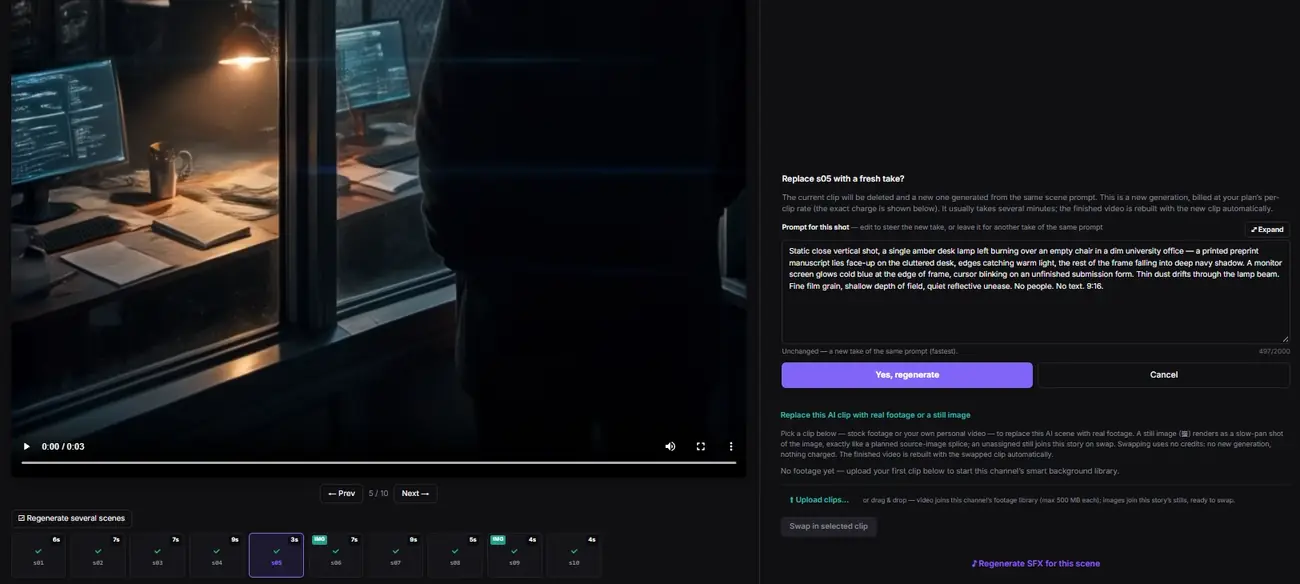
When the plan looks right, tap Render video. The render follows your storyboard: your lines, your clips, your photos and your recordings. After it renders, the clip editor still lets you re-roll or swap any scene, with retakes included on every render.
FAQ
Is this an AI storyboard generator?
Yes. Synthvids generates the storyboard from your script automatically, scene by scene, and you edit it before anything renders. Unlike a storyboard tool that stops at sketches, the storyboard here is the actual plan your video renders from.
What's the difference between a storyboard and a pre-render editor?
A storyboard shows the scenes in order. A pre-render editor lets you change them before the video is made. In Synthvids they're the same screen: you see the storyboard and edit it there.
Can I plan a YouTube video scene by scene before rendering?
Yes. Every scene's narration, picture, footage and voice can be set during pre-render planning, for YouTube Shorts (9:16) and long videos (16:9). Switch between them at the top of the storyboard.
Does editing before the render cost credits?
Opening the storyboard and laying out the scenes doesn't. Ask the writer and writing a new script cost the same as writing a script, and the render is charged like any render.
Do I have to storyboard every video?
No. It's there when you want control over each scene. Instant Render still makes the whole video in one click.
Can I upload footage I found online?
Only upload photos and clips you own or have the right to use.
Try it
See the plans, then open any story and click Storyboard to plan your next video before it renders.